Print your STL file online
Upload an STL, STEP, OBJ or 3MF file, see the price in seconds, and get the printed part delivered anywhere in India.
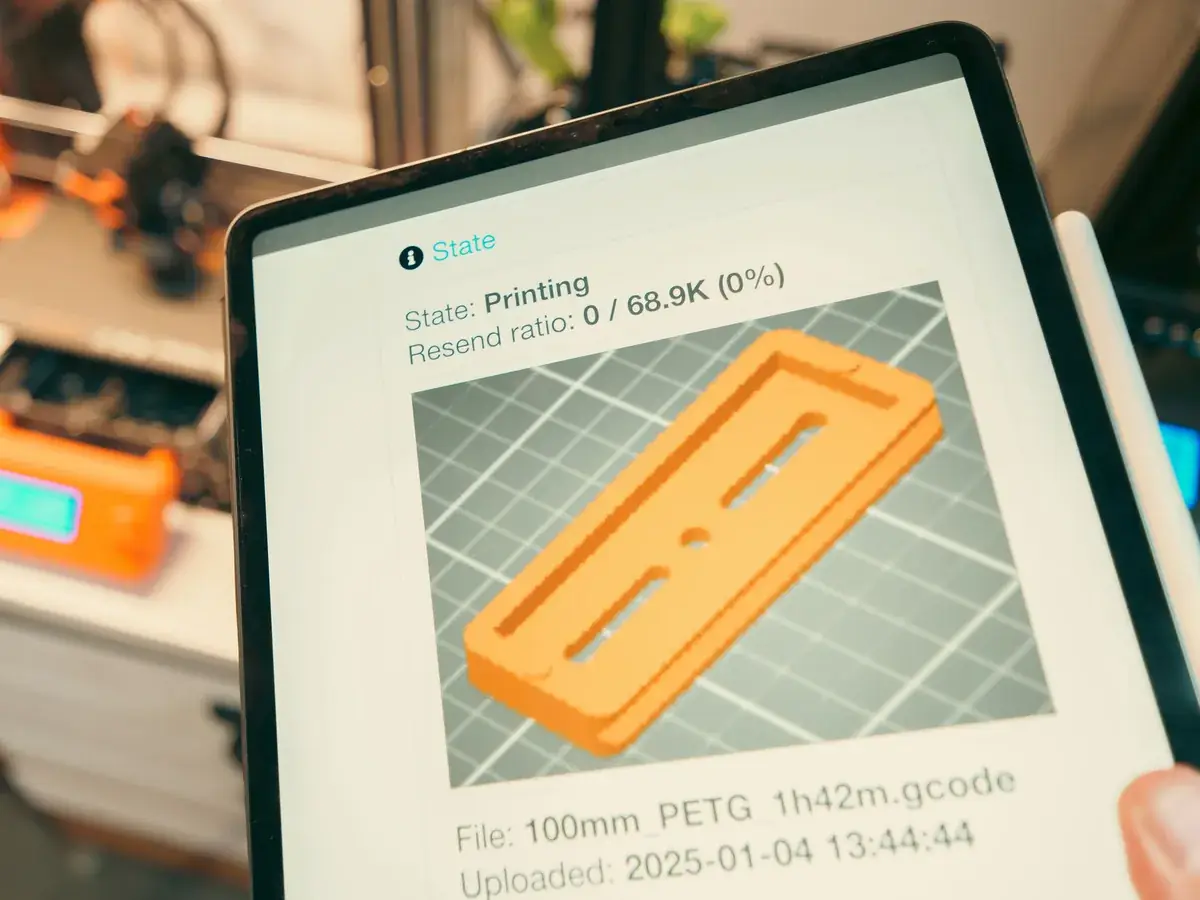
From file to printed part in four steps
1. Upload your file
Drop it on the quote page. It's measured in your browser and you see the price straight away.
2. Pick material and colour
PLA, PETG, TPU, ABS, ASA or Glow PLA, a colour, quality and quantity. The price updates as you change options.
3. Pay securely
UPI, cards or netbanking through Razorpay. Prices are inclusive of all taxes.
4. We print and ship
Every file is checked, printed, inspected and dispatched within 2–3 working days, with tracking.
Files we accept
One file can hold one part or several: every separate body is measured and priced.
.stl
The most common 3D printing format. A mesh of triangles, no units.
.step
Exact CAD geometry with units. Best for engineering parts.
.3mf
Modern mesh format that keeps units. Exported by most slicers and CAD tools.
.obj
Mesh format from modelling and sculpting tools such as Blender.
.iges
Older CAD exchange format, still common from engineering software.
How to export an STL or STEP from your software
Export in millimetres. If you can, export STEP for engineering parts: it keeps exact dimensions.
- Autodesk Fusion
- Right-click the body in the browser → Save As Mesh → STL (binary) or 3MF, units millimetres. For exact dimensions, export STEP instead (File → Export → STEP).
- SolidWorks
- File → Save As → STL (*.stl). Under Options, set units to millimetres and resolution to Fine. Or save as STEP AP214.
- Onshape
- Right-click the part → Export → format STL or STEP, units Millimeter, resolution Fine.
- Tinkercad
- Export (top right) → For 3D Print → .STL. Tinkercad already works in millimetres.
- Blender
- File → Export → STL. Blender works in metres by default, so set the scene unit scale to 0.001 or export with Scale 1000, then check the size on our quote page.
- FreeCAD
- Select the body → File → Export → STEP (*.step), or Mesh formats (*.stl) for a mesh.
Five checks for a good print
Right units
STL and OBJ files store no units. If your part looks 10× too small or too large on the quote page, change the units there: the price updates instantly.
A closed mesh
The model should be a solid, closed surface. Small gaps are fine: we check every file and repair minor mesh issues before printing.
Walls thick enough
Keep walls at least 1.2 mm thick (1.6 mm or more for strong parts). Very thin features may not print reliably.
Clearance for moving parts
Leave about 0.2–0.3 mm gap per side for holes, pins and press-fits, and mention critical fits in your order notes.
Text and small details
Raised or engraved text reads best at 1 mm deep and 5 mm tall or more.
No file yet? Send a sketch or photo to our 3D design service. Wondering about cost? See example 3D printing prices.
STL printing questions
Can you print my STL file?
Yes. Upload it on the quote page to see the price instantly, choose the material, colour and quality, and pay online. We print, check and dispatch within 2–3 working days, shipping anywhere in India.
Should I upload STL or STEP?
Both work. STEP keeps the exact CAD geometry and units, so it's best for engineering parts. STL is a mesh and the most common format for models downloaded from the internet or made in sculpting tools.
What if my file has errors?
The instant quote still works. We review every file before printing and fix small mesh problems. If something needs a design change, we contact you before printing, and any price difference is adjusted or refunded.
Are my files kept private?
Yes. Files are stored privately, used only to make your order, and never shared or reused. See our privacy policy for details.
Can I upload an assembly or several parts in one file?
Yes. Every separate body in the file is measured and priced, so assemblies and plates of parts work. One part per file is clearest when you want different materials or colours for each.